How to print colouring pages at home: paper, size and printer settings
Updated 2026-10-15
Printable colouring pages are only as good as the print. Thin paper makes markers bleed, the wrong size setting crops the border, and a low-quality mode turns crisp lines grey. Here is how to get a clean, shop-quality page at home or at a local print shop.
Step 1: Use the right file for your paper
Most printable colouring books come in two sizes. Use the one that matches the paper in your country:
- A4 (210 × 297 mm): India, UK, Europe, the Gulf, Australia and most of the world.
- US Letter (8.5 × 11 in): USA and Canada.
The two sizes are close but not identical. Printing a Letter file on A4 paper without adjusting the settings can cut off the edges. All Riz Studio Co colouring books include both versions, so pick the matching file and you will not need to resize anything.
Step 2: Choose your paper
Paper weight is measured in gsm (grams per square metre). Higher means thicker.
- 75–80 gsm (normal copy paper): fine for coloured pencils and crayons. Cheap, so good for practice pages.
- 100–120 gsm: a noticeable upgrade. Smoother for pencils and handles light marker use.
- 160–200 gsm or light cardstock: best for alcohol markers, brush pens and watercolour pencils. Check your printer's manual for the thickest paper it accepts.
Whatever you choose, keep a spare sheet under your page when using markers. It protects the next page and your table.
Step 3: Printer settings that matter
- Scale: Actual size / 100%. This keeps the border and line thickness exactly as designed. Only use “Fit to page” if you are printing a different paper size.
- Quality: High or Best. Draft mode saves ink but makes lines faint and patchy.
- Colour: Black & white / Greyscale. Line art is pure black, so this saves your colour cartridges.
- Paper type: if you use thick paper, set the type to “Matte”, “Heavy” or “Cardstock” so the printer feeds it slower.
- One-sided printing. Colouring pages are best printed on one side only, so marker ink on the back of one page does not ruin another. Many books include a single-sided PDF version for this reason.
Step 4: Print just the pages you want
You do not need to print a 60-page book in one go. In the print dialog, choose “Pages” and type a range such as 3-5 or single pages like 2, 9, 17. Print a few at a time and print favourites again whenever you like.
How to print from your phone
Android
Open the PDF, tap the three dots or Share, then Print. Choose your Wi-Fi printer. If it is not listed, install your printer brand's app (HP Smart, Canon PRINT, Epson Smart Panel) from the Play Store.
iPhone and iPad
Open the PDF in Files or Books, tap Share, then Print. AirPrint printers appear automatically when they are on the same Wi-Fi.
No printer at home?
Send the PDF on WhatsApp or by email to a local print or photocopy shop. Ask for “single-sided, black and white, actual size, on thick paper” if they have it. It is usually cheap per page.
Troubleshooting
- Edges are cut off: you are printing a Letter file on A4 (or the reverse). Use the other file, or select “Fit to page”.
- Lines look grey or fuzzy: switch quality to High and print the PDF, not a screenshot.
- Paper curls with markers: use thicker paper and let each layer dry for a minute.
- Printer jams on cardstock: feed one sheet at a time from the rear or manual tray.
Colouring on a tablet instead
If you prefer digital colouring, use PNG pages, such as the tablet PNGs included with Cozy Little Moments and the Colouring Pages Bundle. Import them into Procreate, ibis Paint X or any colouring app, put the line art on its own layer set to “Multiply”, and colour underneath it.
Ready to print?
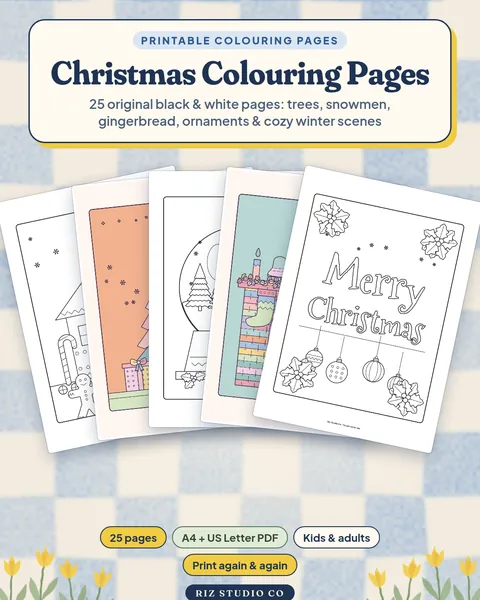
Start with the Cozy Little Moments book (US Letter and A4, single-sided version included), the six-book Premium Colouring Bundle, or a quick seasonal set like Christmas Colouring Pages. New to colouring? Read our beginner's guide to adult colouring first.
Questions
What paper is best for colouring pages?
For coloured pencils, normal 80–100 gsm printer paper is fine. For markers and brush pens, use thicker 120–200 gsm paper or light cardstock that your printer accepts, so the ink does not bleed through.
Should I print colouring pages at 'fit to page' or 'actual size'?
Choose 'Actual size' or 100% when the PDF matches your paper (A4 file on A4 paper, Letter file on Letter paper). Use 'Fit to page' only if you print a Letter file on A4 or the other way round.
Can I print from my phone?
Yes. On Android use Share → Print or the printer's app. On iPhone use Share → Print with an AirPrint printer. You can also send the PDF to a print shop on WhatsApp.
Why do my printed lines look grey or jagged?
Set print quality to 'High' or 'Best', print in black or greyscale, and make sure you print the PDF itself, not a screenshot of it.
Products in this guide
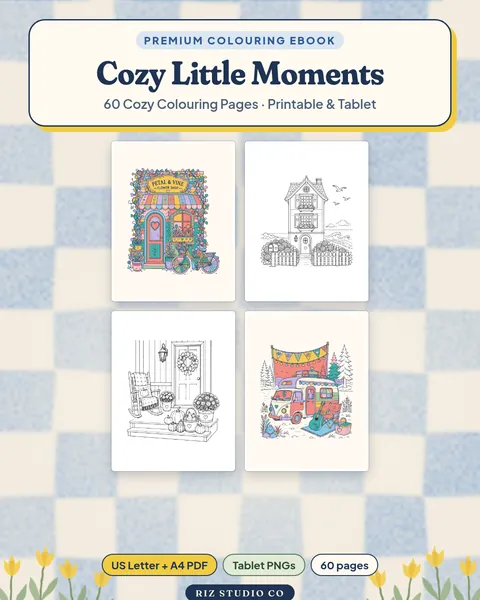
Cozy Little Moments: 60 Cozy Colouring Pages
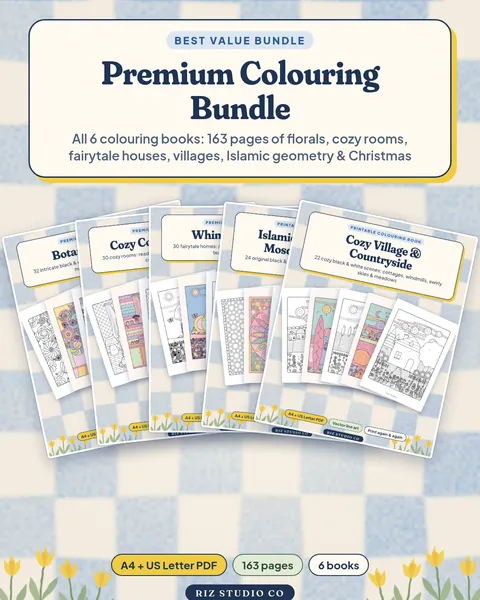
Premium Colouring Bundle: All 6 Colouring Books